Stay ahead of the schedule.
Keep the trailer running.
FieldOps is an AI assistant that works beside Procore — schedule recovery, daily logs, submittals & RFIs, drawings and field knowledge, lookaheads, and reports — then syncs it all back into your system of record. Plus real-time collaboration so your PM and super work the same job together. Offline-first; your data stays on your machine.
Signed installer · auto-updating · works offline · your data never leaves your machine
The trailer’s loudest when you’re already behind.
Schedules slip. Subs fall behind. Field knowledge lives in five apps and your head. FieldOps puts it on one screen — and helps you do something about it.
Up and running in three steps
Install on your machine
Download the signed installer and run it. Everything stores locally — no cloud account.
Connect your tools
Add your own AI key (Anthropic recommended), then link Procore and Outlook/365.
Plan, document, collaborate
Work the job from one desk — push daily logs and schedules back to Procore, and collaborate live with your PM or super.
One desk for the whole job
Team & PM Collaboration
Share a project with your PM or super, run a help thread, and track action items together — in real time, from your own machines.
Cloud Projects
Projects appear automatically by work email: the PM creates and assigns them, the super sees them on their machine — field data still stays local.
Live Notifications
In-app and desktop toasts the moment a teammate posts or assigns — even while minimized to the tray.
Teams Screen-Share
One click starts a Microsoft Teams call and screen-share with your PM or super — no phone tag.
Docs & Photo Attachments
Attach documents and images to shared action items, RFIs, and submittals — everyone on the project sees them.
Procore Connector
Daily logs, schedules, submittals, RFIs, and the project directory — pull, edit, and push back, both directions.
RFIs
Draft an RFI, polish the wording with AI, route it to your PM, and push it straight to Procore.
Submittals
Send submittals to Procore with approvers and distribution set, then watch the disposition sync back as the architect responds.
Procore Project Setup
PMs stand up an entire Procore project in one pass — the project, management team and subcontractor directory, roles, and distribution groups.
Contacts Sync
Per-project contacts that stay in sync, two-way, with the Procore directory.
AI Daily Logs
Expand field shorthand into a full narrative, then push it straight to Procore.
Jobsite Weather
Current conditions for the project address on your dashboard — and auto-filled into the Procore daily log.
Schedule Recovery (AI)
Detect slippage against your status date and generate grounded recovery plans.
Dependency Intelligence
Flags out-of-sequence work and downstream at-risk activities from predecessor logic.
Lookaheads + Reports
Savable 1–10 week windows; generate Field Guidance and OAC status reports as clean PDFs.
Sub Assistant
Get ahead of underperforming subs with automatic 4-week and 2-week follow-up reminders.
Field Knowledge Base
Ask questions across your specs, submittals, and drawings — answered locally, on-device.
Submittal Review (AI)
Compare a submittal against the exact spec sections you pick — AI flags deviations, gaps, and unclear items.
Drawings Q&A (AI)
Ask a plain-English question about a drawing set; the assistant finds the right sheet and reads it — even scanned drawings.
Outlook / 365
Draft emails, sync schedule starts to your calendar, and set reminders.
Voice Notes
On-device speech-to-text (works offline) for quick notes from the field.
Meetings & Toolbox Talks
Minutes with carried-over action items; generate safety topics on demand.
Receipts & Expenses
Scan receipts and produce expense reports without leaving the trailer.
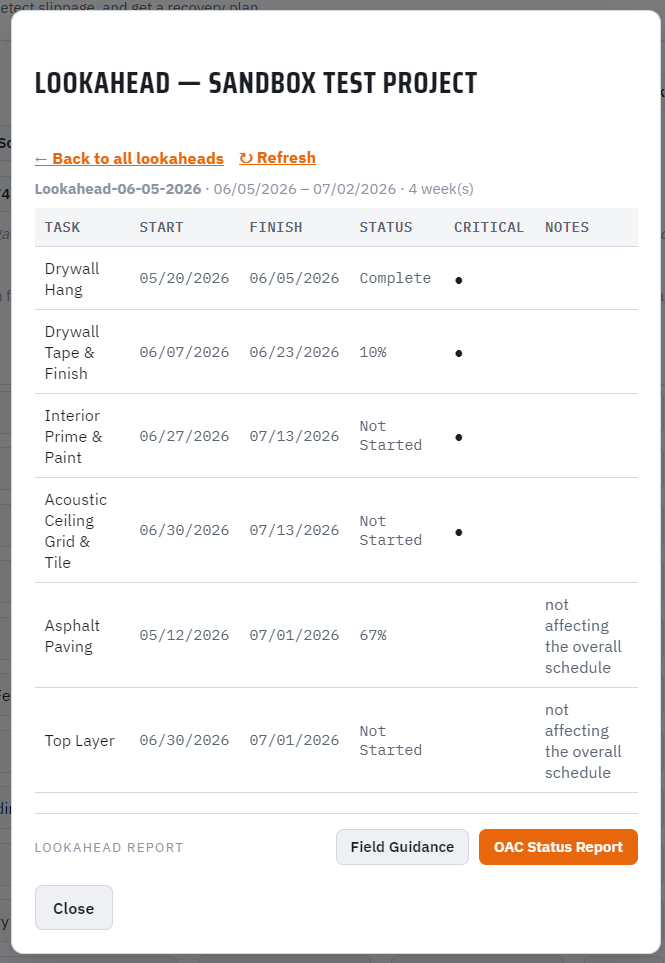
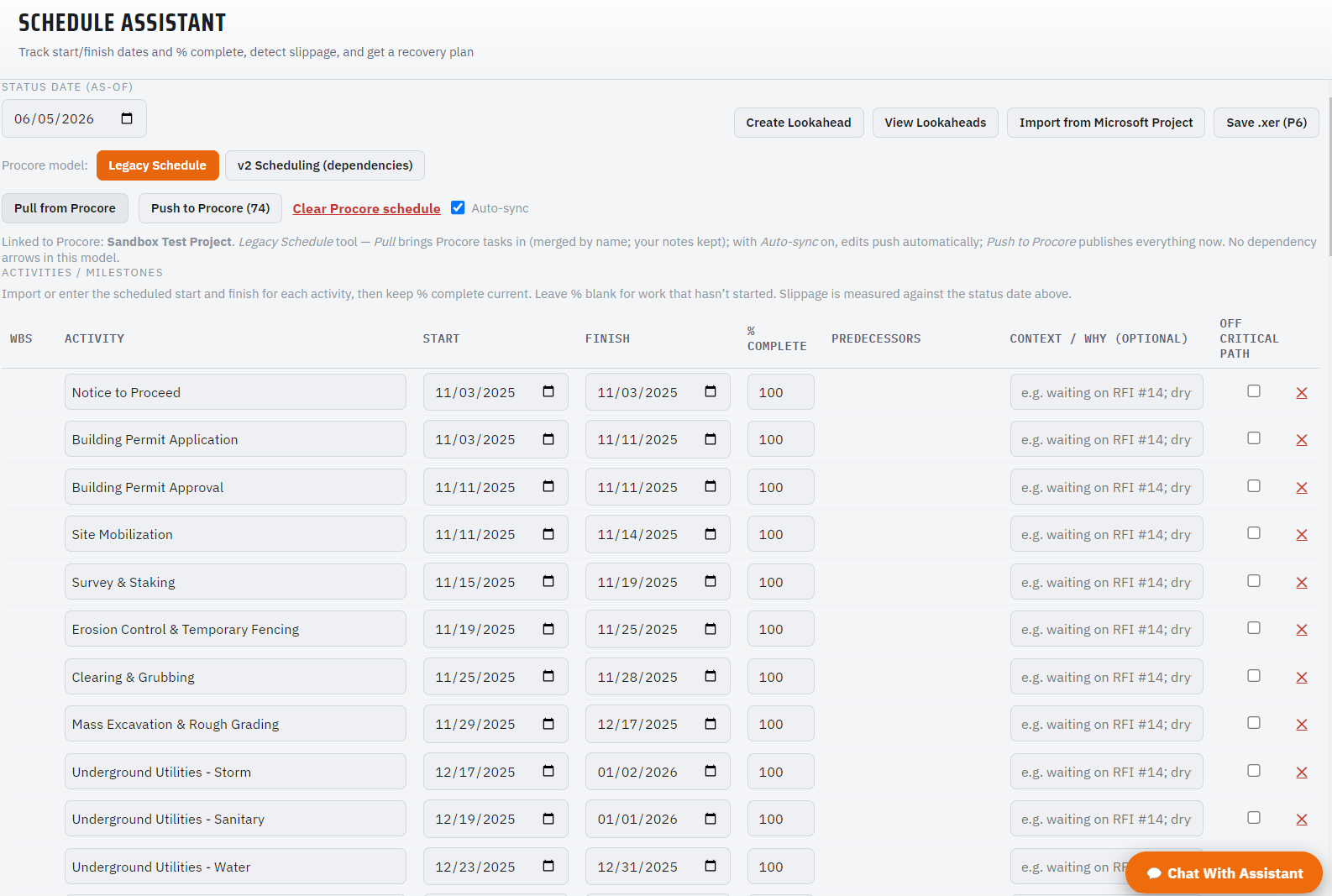
See the slip before it costs you
- AI slippage detection and recovery plans against your status date.
- Dependency intelligence — out-of-sequence work and downstream at-risk flags.
- Import your MS Project schedule; keep WBS and predecessor links intact.
- Build your own lookahead windows (1–10 weeks) over your live schedule.
- Generate Field Guidance and OAC Status reports as polished PDFs.
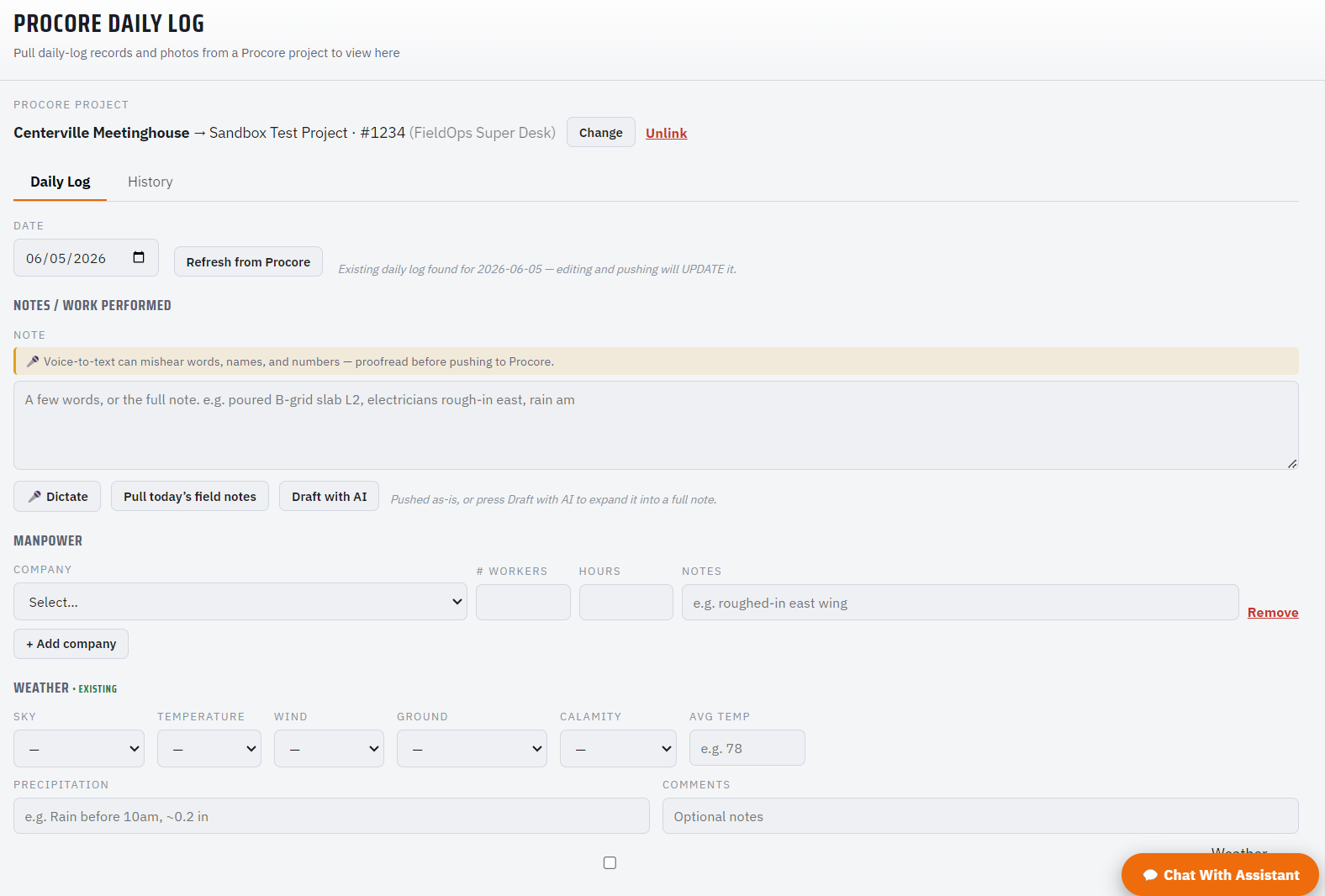
Pull it in, edit it, push it back
Auto-pull a project’s daily log or schedule for a date, edit it in one screen, and push it back into Procore. Your master schedule round-trips — WBS hierarchy and dependency arrows included — so the field stays in sync with the system of record.
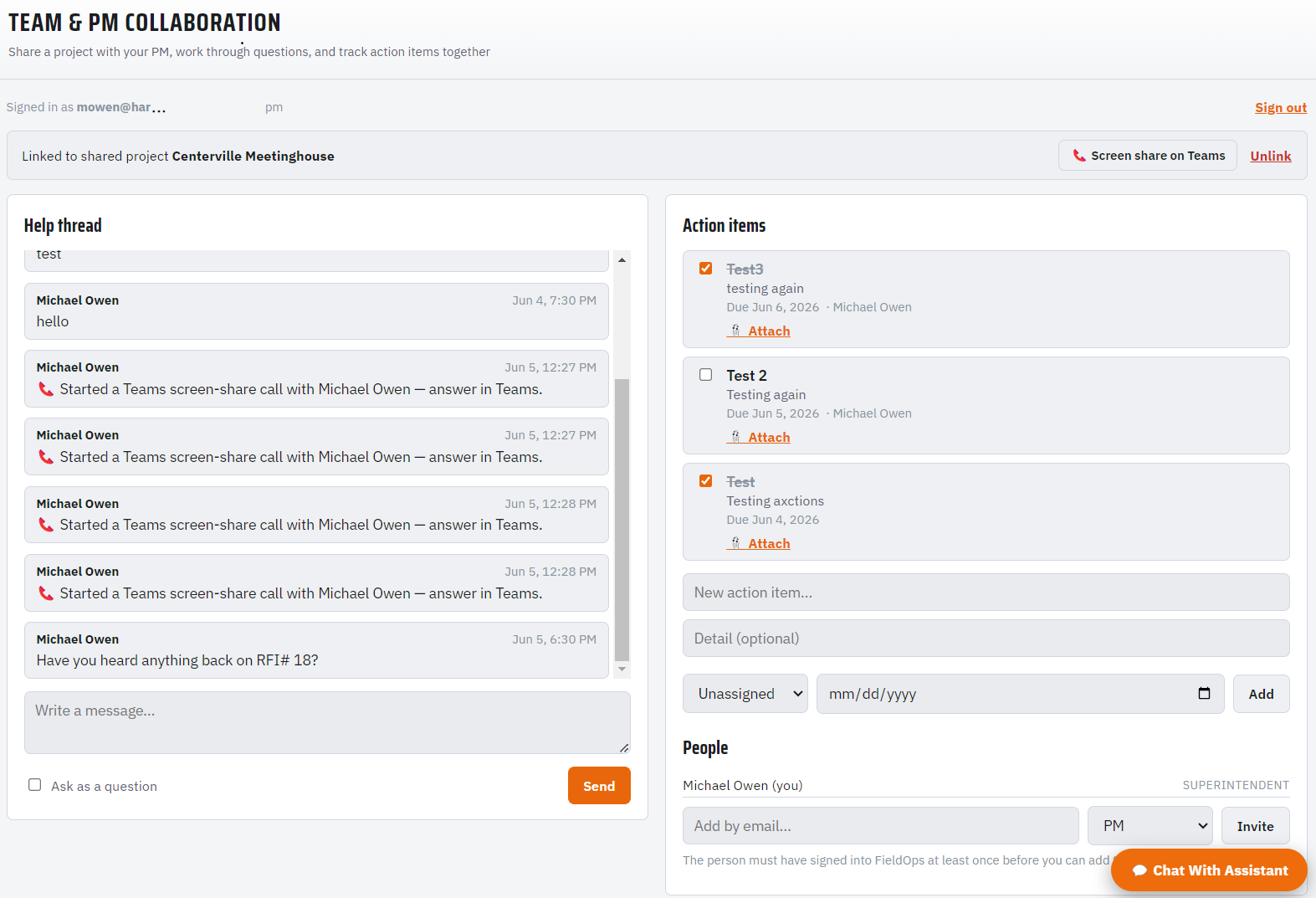
Get the PM in the trailer — without the trailer
- Share a project and run a help thread with your PM or super in real time.
- Track action items together — with document and photo attachments everyone can see.
- Live notifications — in-app and desktop toasts the moment a teammate posts or assigns, even minimized to the tray.
- One click starts a Microsoft Teams call and screen-share.
- Microsoft 365 sign-in with row-level isolation — you only ever see your own projects.
Capture punch & QC from your phone
- Snap a photo and AI drafts the deficiency description for you.
- Run QC checklist walks — every failed item becomes a punch item automatically.
- Works offline in dead zones; syncs to the desk the moment you’re back in signal.
- No app store — install to your home screen in seconds.
Open mobile.fieldopssuperdesk.com on your phone, or scan →

Super’s Desk for the field. PM’s Desk for the office.
Same app, set by your license. The project manager creates and manages projects and assigns the team by email; the superintendent field-manages them — and both work the same shared project, each with the tools that fit their role.
Secure, signed, and yours
Download FieldOps & request your license
Install the app, and it shows your Machine ID. Email it to us and we’ll send back a license key to activate — no internet required to run.
To unlock AI features, add your own API key in Settings — we recommend Anthropic (Claude).
Frequently asked
Yes. FieldOps ships as Super's Desk and PM's Desk from the same app — the edition is set on your license. PMs create and manage projects and assign superintendents by email; supers field-manage them. Both work the same shared project.
Sign in with your Microsoft 365 account and you see the projects you're a member of. Share a project, run a help thread, and track action items (with document and photo attachments) together in real time — with in-app and desktop notifications, and one-click Microsoft Teams screen-share.
Only the shared layer is — the project directory, help thread, and action items — and it's isolated per project by row-level security, so you only ever see projects you're on. Your detailed field data (schedules, logs, documents) still lives locally on your machine.
Only for the optional one-click screen-share/call hand-off. Everything else works without it; if Teams isn't installed, the dashboard offers to install it.
No — FieldOps works beside Procore (and ConSlog, BuildManager Pro, etc.). It helps you plan, document, collaborate, and recover, then syncs results back into your system of record.
Your project data lives in a local database on your PC and never leaves your machine; credentials are encrypted at rest. Only the collaboration directory + threads + action items live in the shared, access-controlled backbone.
Only for collaboration, Procore/Outlook sync, weather, and AI features. The app runs and stores your data fully offline, and keeps you signed in for collaboration once connected.
FieldOps is licensed per machine. After installing, the app shows your Machine ID — email it to support@fieldopssuperdesk.com and a license key is sent back to activate.
You bring your own API key to unlock AI features. Anthropic (Claude) is recommended; add it in Settings.
Windows 10 or 11 (64-bit). The installer is code-signed and updates itself automatically.